Cloud Foundry Endpoints
Cloud Foundry is the industry-standard open source cloud application platform for developing and deploying enterprise cloud applications.
Stratos provides easy access to many of Cloud Foundry's features such as
- Browsing, deploying and managing applications
- Browsing services, and creating and managing service instances
- Managing Organisations and Spaces
- User role management
- ... and much more
Registering a Cloud Foundry Endpoint
Stratos administrators register endpoints from the Endpoints page. (With user endpoints turned on, endpoint admins can register personal ones too.) Click + (Register Endpoint) and pick Cloud Foundry. The dialog has two steps, Register and Connect (Optional).
On the Register step, give the endpoint a name and its CF API address. If an endpoint at that address is already registered, the step says so; you can still register another (see Endpoints at the same address).
If the API's certificate is signed by a certificate authority the console does not already trust, tick Use a CA Certificate for the endpoint and paste the CA's PEM. Skip SSL validation for the endpoint turns off certificate checks entirely; use it only for test systems. Both are set on the Register step and in Edit Endpoint, not when connecting.
Show Advanced Options opens the Client ID, Client Secret and SSO
settings. The Client ID and Client Secret can usually be left blank. Stratos then
uses its own client, the one set by CF_CLIENT (cf when unset).
The client must allow the way users connect:
- Username and password needs a client with the
passwordgrant. If it lacks it, Connect reports "Unauthorized grant type".cf, the client the cf CLI uses, has it in a standard Cloud Foundry. - SSO ("Allow SSO login") needs a client with the
authorization_codegrant and the Stratos SSO callback in itsredirect_uri. If the callback is missing, the login server stops with "Invalid redirect".cfdoes not have it by default.
A console set up for SSO often has a client that allows SSO but not
passwords. For endpoints that users connect to with a password, enter cf
as the Client ID, with no secret. Your UAA administrator can tell you what a
client allows (uaac client get <client id>).
To allow the user to connect to the endpoint via SSO check the box. Some of the information in the Stratos SSO Guide may be helpful.
Click Register. The Connect step follows: connect now, or leave Connect to … now (optional) unticked and connect later.
Connecting to a Cloud Foundry Endpoint
Connect from the endpoint's menu on the Endpoints page (card or row), from the home page, or from the prompt Stratos shows when a connection has expired. Each opens the same dialog on its Connect step: enter your Cloud Foundry username and password, or use SSO if the endpoint allows it.
The Connect step shows the address the endpoint is registered at. Review (or Previous, or the Register step's header) shows the registration read-only; reviewing never changes or unregisters the endpoint. For users who may change the endpoint, the Register step ends with Unregister…, which asks before it removes the endpoint.
Checking the endpoint's certificates
For an https endpoint, the Register step (when you review it) and
Edit Endpoint show each certificate in the endpoint's CA: subject,
issuer, validity dates and SHA-256 fingerprint, with a badge when it expires
within 30 days or has expired. The Connect step shows the same badge beside
the address.
Check trust now tests the API host and its login server (UAA) against the
certificates the console already trusts plus the endpoint's CA, and lists
each host as trusted or not, with the reason. The result is not saved. The
check does not go through HTTPS_PROXY; behind a proxy it reports the hosts
as unreachable.
Application labels
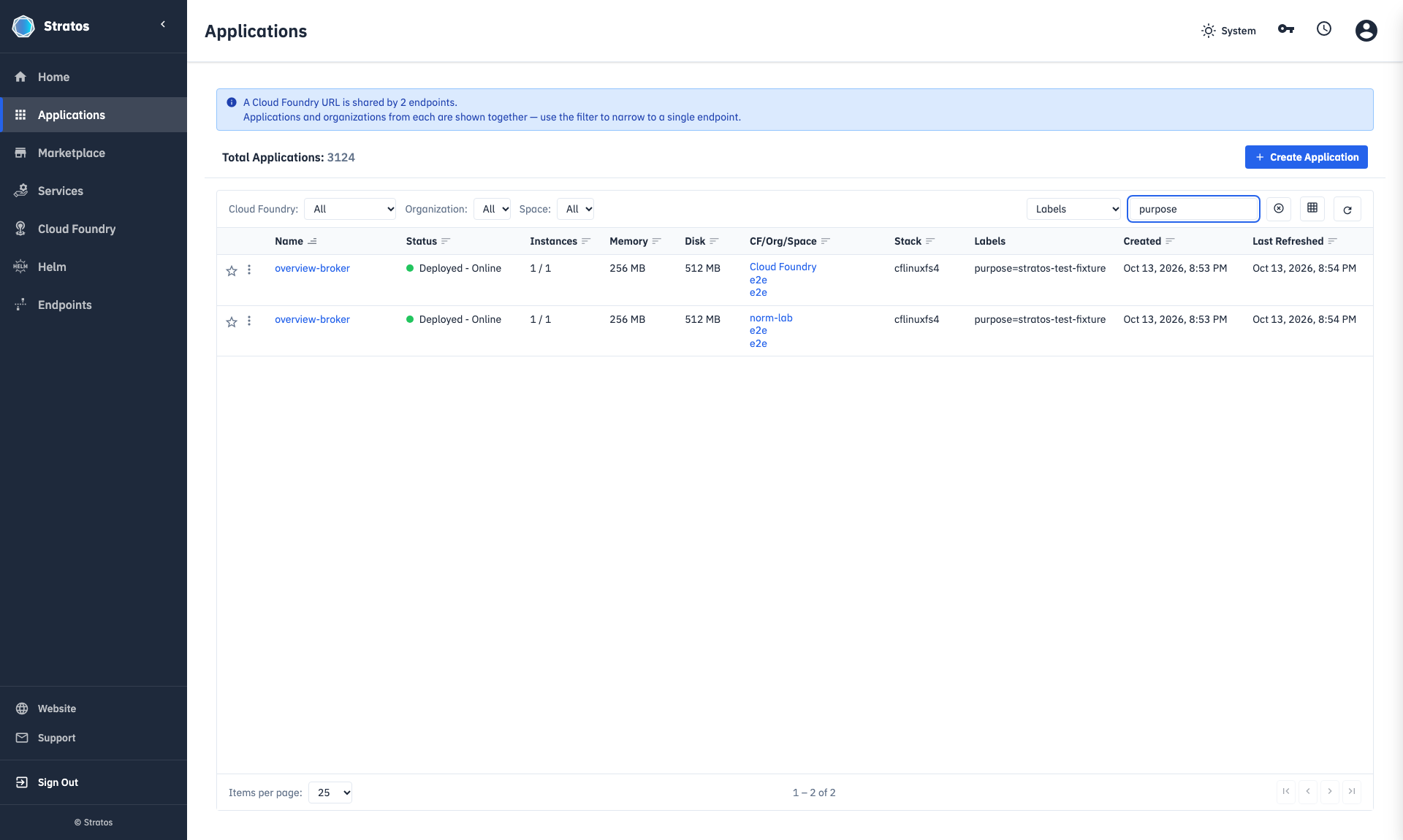
Stratos shows each application's Cloud Foundry
labels as
key=value in a Labels column on the application lists (the
Applications page, and the Applications tabs of a Cloud Foundry and of a
space), and under Labels on the application's Summary. To find
applications by label, choose Labels as the filter field and type part of
a label, such as team=platform.
To change them, open the application's Summary and click Edit. Under
Labels, type a label as key=value and press Enter; a value may be
empty. Remove a label with the cross on its pill. A label Cloud Foundry would
refuse (a key with bad characters, or the reserved cloudfoundry.org
prefix) is reported as you add it. Saving changes only the labels you added
or removed; the application's other labels and its annotations stay as they
are.